
Spreadsheet
.xlsx for Excel, Google Sheets and Numbers
A Log sheet ready to fill in, one row per set, an Example sheet with two finished sessions, and a How to sheet that explains every column.
Download the spreadsheet9 KB · no macros
Free tool
A workout log in two forms: a spreadsheet for Excel, Google Sheets and Numbers, with one row per set, and a one-page printable sheet for the gym floor. No sign-up and nothing to install.
.xlsx for Excel, Google Sheets and Numbers
A Log sheet ready to fill in, one row per set, an Example sheet with two finished sessions, and a How to sheet that explains every column.
Download the spreadsheet9 KB · no macros
PDF, one page per session
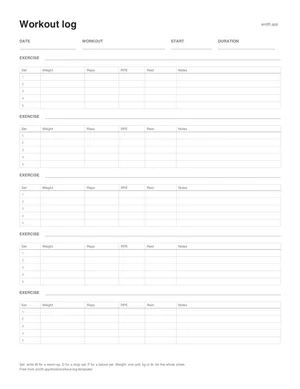
The date, workout and duration at the top, then 5 exercises with 5sets each, with columns for weight, reps, RPE, rest and notes.
8 KB each
Plain text, for any app
Just the header row, in the same column order as the spreadsheet, for any app or script that reads comma-separated files.
Download the CSVUnder 1 KB
One row per set. Every row of a session shares its date and workout name, so the sheet stays easy to filter, sort and chart. These are the rows on the Example sheet.
| Date | Workout Name | Duration | Exercise Name | Set Order | Weight | Reps | Distance | Seconds | Notes | Workout Notes | RPE |
|---|---|---|---|---|---|---|---|---|---|---|---|
| 2026-10-20 18:00 | Push day | 1h 5m | Bench Press (Barbell) | W | 40 | 10 | |||||
| 2026-10-20 18:00 | Push day | 1h 5m | Bench Press (Barbell) | 1 | 80 | 8 | 8 | ||||
| 2026-10-20 18:00 | Push day | 1h 5m | Bench Press (Barbell) | 2 | 80 | 8 | 8.5 | ||||
| 2026-10-20 18:00 | Push day | 1h 5m | Bench Press (Barbell) | 3 | 80 | 7 | 9 | ||||
| 2026-10-20 18:00 | Push day | 1h 5m | Overhead Press (Barbell) | 1 | 45 | 10 | |||||
| 2026-10-20 18:00 | Push day | 1h 5m | Overhead Press (Barbell) | 2 | 45 | 9 | |||||
| 2026-10-20 18:00 | Push day | 1h 5m | Lateral Raise (Dumbbell) | 1 | 10 | 15 | |||||
| 2026-10-20 18:00 | Push day | 1h 5m | Lateral Raise (Dumbbell) | D | 6 | 12 | |||||
| 2026-10-22 18:30 | Pull day | 55m | Pull Up | 1 | 10 | ||||||
| 2026-10-22 18:30 | Pull day | 55m | Pull Up | 2 | 8 | ||||||
| 2026-10-22 18:30 | Pull day | 55m | Bent Over Row (Barbell) | 1 | 70 | 10 | Strict, no swing | ||||
| 2026-10-22 18:30 | Pull day | 55m | Plank | 1 | 60 |
For logging on paper: print a stack, keep one on a clipboard, and fill in a page per session. Write the exercise on its line, then each set’s weight and reps as you go. A W, D or F in the Set column marks a warm-up, drop set or failure set, the same letters the spreadsheet uses, so a page types up cleanly later.
Log on the Log sheet, one row per set. Write the date as text with the start time, like 2026-10-20 18:00, and repeat it with the workout name on every row of that session. Set Order is 1, 2, 3 for working sets, or W, D and F for warm-ups, drop sets and failure sets. Keep every weight in one unit, kilograms or pounds, and leave Weight blank for bodyweight exercises.
Excel and Numbers open the file directly. For Google Sheets, upload it to Google Drive and open it with Sheets, or start a blank sheet and choose File, then Import. The Date and Set Order columns are set to plain text, so the spreadsheet won’t turn a date into a number or a W into something else.
A grid with one column per set looks tidy on paper, but it is awkward in a spreadsheet: sessions have different numbers of sets, and adding anything up means formulas across uneven rows. One row per set keeps every value in its own column, so a filter shows one exercise’s history, a pivot table counts your weekly sets, and a chart of your top weight is a few clicks away. It is also the layout most workout apps use when they export your data.
The columns match the CSV that the Strong app exports, in the same order with the same names, and Arclift’s free import already reads that format. With the Log sheet open, save or download it as CSV, then open Settings, then Import from Hevy or Strong in Arclift and pick the file. Arclift asks whether your weights are kilograms or pounds, matches exercise names to its library and lets you change any match, shows a preview, and then saves the sessions as finished workouts. A name it doesn’t recognize becomes a new custom exercise.
Two things keep the import clean. Leave the Date column as text in the 2026-10-20 18:00 format: a date without a time is skipped, and so can be one a spreadsheet has rewritten in another format. And delete any example rows you copied in, or they will be imported as workouts too.
A spreadsheet is a good log at a desk and a clumsy one in the gym. Typing numbers into small cells on a phone, with chalk on your hands, is slow, and last week’s numbers are rows away instead of next to the set you are about to do. There is no rest timer, and no suggestion for next time unless you build the formulas yourself and keep them working.
Arclift does those parts. It logs a set with one thumb on its own keypad, with last time’s weight and reps beside the field, starts a rest timer that keeps running with the screen locked, and saves any session as a reusable template. With Arclift Pro, the progression coach sets the weight and reps for your next session. Logging is free, and Pro is optional.
Yes. Download the spreadsheet above and open it in Google Sheets: upload it to Google Drive and open it with Sheets, or start a blank sheet and use File, then Import. Excel and Numbers open the same file directly, with no conversion.
Download the PDF in Letter or A4 and print as many copies as you need. Each page holds one session: the date, workout, start time and duration at the top, then five exercises with five sets each, with room for weight, reps, RPE, rest and notes.
At minimum the date, each exercise, and the weight and reps of every set. Adding how hard each set felt, marking warm-ups as warm-ups and writing a note when something felt off make it far easier to decide what to lift next time.
Yes. Its columns match the CSV that the Strong app exports, which Arclift’s free import reads. Save the Log sheet as CSV, then open Settings, then Import from Hevy or Strong in Arclift and pick the file. Keep dates as text like 2026-10-20 18:00, and use one weight unit for the whole sheet.
A spreadsheet is great for planning and reviewing at a desk; an app is better in the gym. Typing on a phone between sets, finding last week’s numbers and timing your rest are all slower in a sheet, which is why many lifters plan in a spreadsheet and log in an app.
Estimate your one-rep max from any set, find the weight for a target RPE, and read the full RPE chart.
Enter a target weight and get the plates for each side of the bar, in kg or lb, with only the plates you have.
Estimate your 1RM from any set with Epley and six other formulas, and get your working weights from 50 to 100%.
Enter your working weight and get warm-up sets that ramp up to it, with the reps and the plates for each side.
Score your powerlifting total with DOTS, Wilks and IPF GL points, for men or women, classic or equipped.
Weekly sets per muscle on a body map, recovery you can read, drop sets that don’t skew your targets, and double progression set for you.
Logging, templates and history free for good, with no account and no ads, and a one-time option for Pro. Plus what other trackers charge.
Pick a progression rule per exercise and get the next weight and reps for every set, with plateaus and deloads called for you.
What a deload is, how to tell you need one, three ways to run it with sample weeks, and what the research actually shows.
A complete push pull legs routine for three or six days a week, with sets, reps, rest, weekly volume per muscle and a rule for progressing it.
Rest times for building muscle, strength and endurance, by goal and by lift, what the studies found, and how to fit longer rests into a short session.
Weekly sets for building muscle, by experience and by muscle group, how to count compound lifts, and when to add or cut volume.
A complete four-day upper lower routine with sets, reps and rest, a beginner version, weekly volume per muscle and how it compares with other splits.
Arclift logs a set with one thumb, starts your rest timer on its own and shows last time’s numbers beside every field. It’s free on iPhone, and it can import this template’s CSV.
 See what’s free and what Pro costs